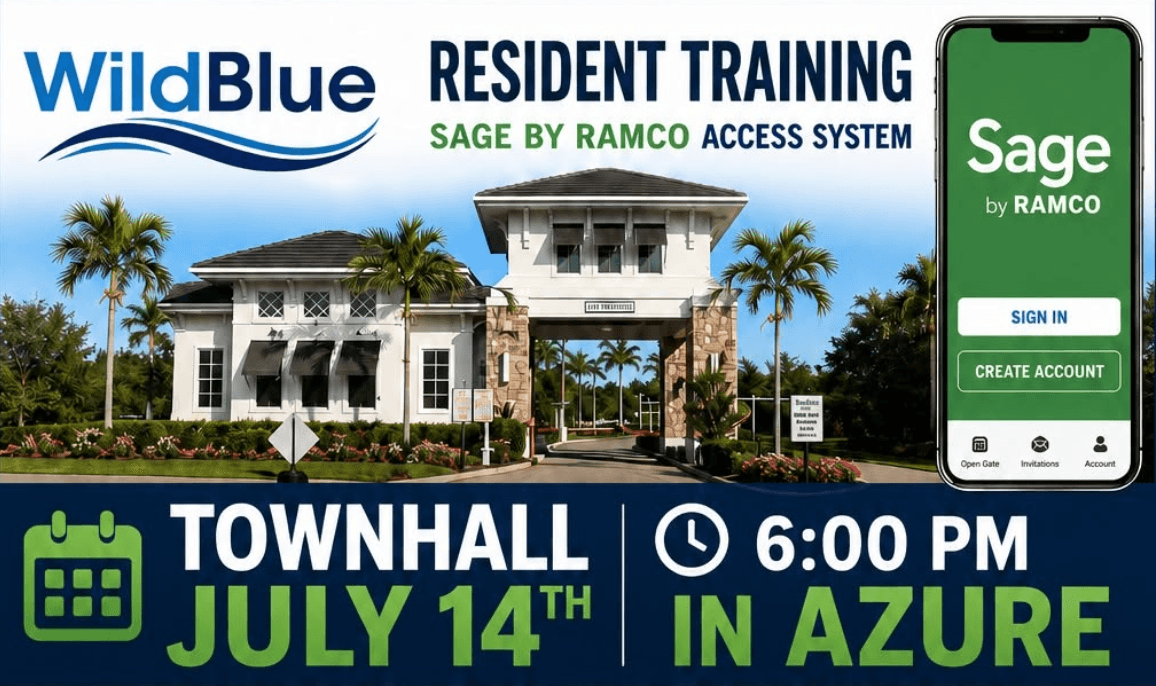
Your guide to SAGE by RAMCO
A practical, plain-English starting point for account setup, vehicle approval, guests, contractors, and deliveries.
Resident town hall & live training
Tuesday, July 14 at 6:00 PM in Azure. Bring your smartphone and/or tablet and register beforehand if possible.
Look for this app on iPhone
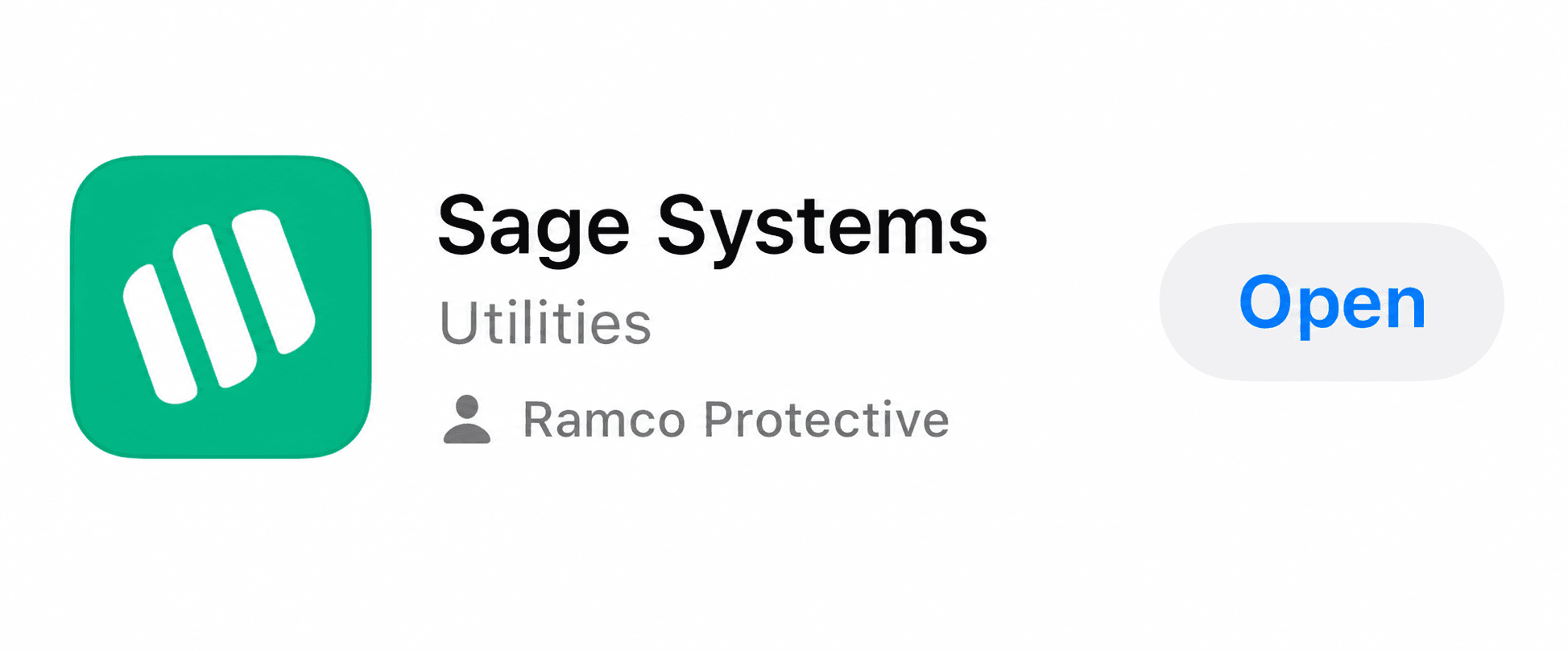
The correct listing has the green icon, the name Sage Systems, and developer Ramco Protective. The button may say “Get” instead of “Open” if you have not installed it yet.
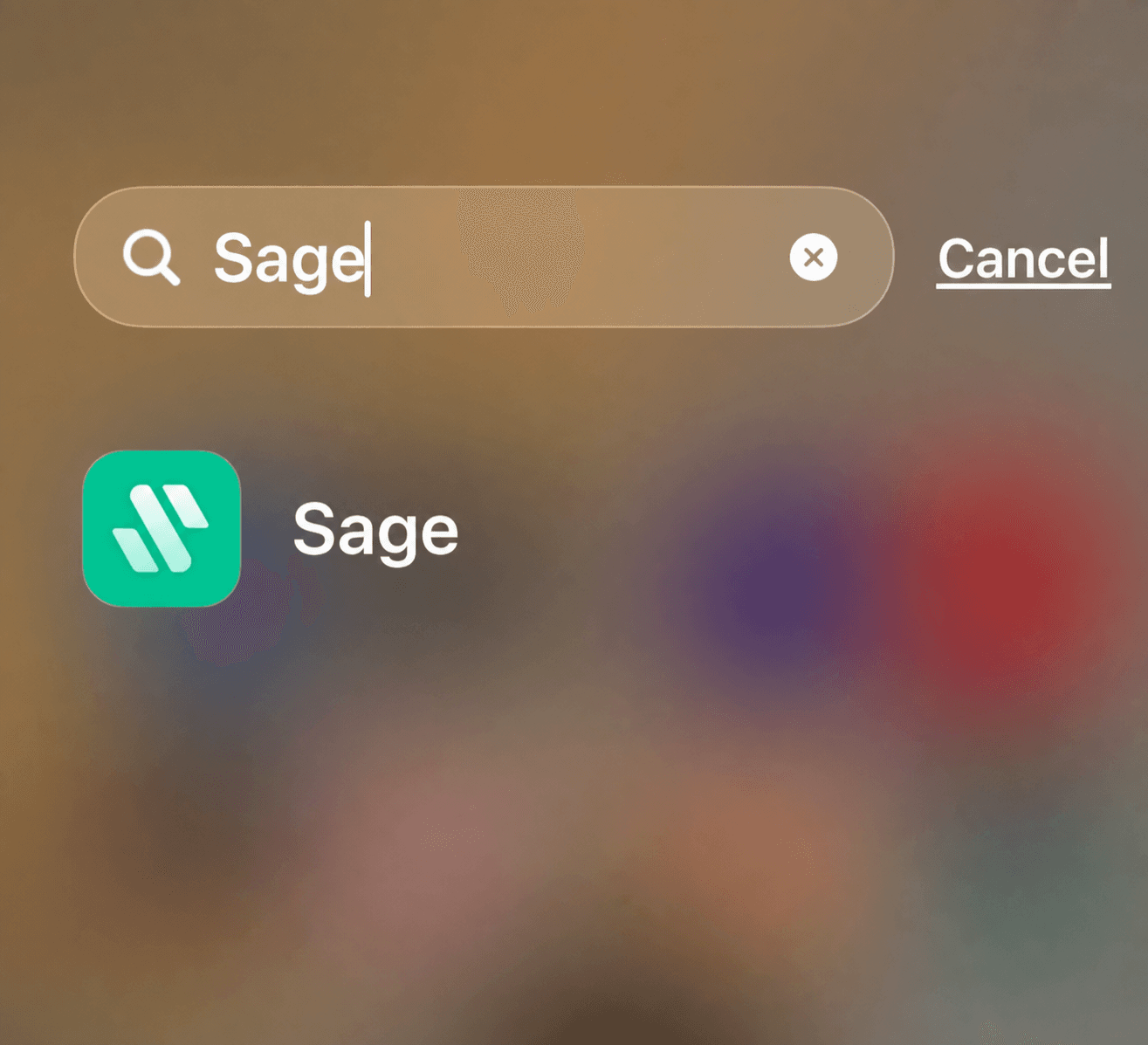
After installation, iPhone search may show the app simply as “Sage.”
Need your resident invitation?
Contact Roxanne Cook at ICON to complete the registration paperwork. She will send your SAGE invitation.
Before training
Get registered in 7 steps
These steps follow the WildBlue resident-training flyer. Keep screenshots of any confirmation or error message.
- 1
Download the correct app
Choose SAGE Systems by RAMCO Protective from the official store links below. Do not download SAGE Guard; that app is for security staff.
- 2
Contact Roxanne at ICON
Email Roxanne Cook at rcook@theiconteam.com to complete the required registration paperwork. Include enough information for ICON to identify your WildBlue residence, but do not email sensitive ID documents unless ICON specifically requests them through an approved method.
- 3
Watch for your SAGE invitation
After ICON processes your registration, Roxanne will send you the invitation needed to connect your residence and activate SAGE. Check your spam or junk folder if it does not arrive.
- 4
Create and verify your account
Open the invitation and follow the prompts using your current contact information. When SAGE asks you to upload a government ID, your WildBlue Resident ID card can be used for this step. If you do not have a WildBlue ID yet, contact Sara Cannaday at scannaday@theiconteam.com or (239) 444-9206.
- 5
Register each vehicle
Enter the required vehicle and license-plate information carefully. Plate recognition depends on an accurate plate record.
- 6
Wait for approval
WildBlue must approve both your residency and vehicle registration. Approval is not instant.
- 7
Confirm that SAGE is active
Once approved, reopen SAGE and confirm that your WildBlue residence and registered vehicle appear correctly before relying on the app for gate access.
Inside the app
What you'll see after logging in
The main dashboard shows your WildBlue property, quick access controls, and tabs for guests, codes, and access keys. Your account screen provides additional shortcuts for invitations, household occupants, password recovery, support, and the app's terms.
- Manage Invitations — create and manage guest access.
- Occupants — review people connected with your residence.
- Contact Support — get help from within SAGE.
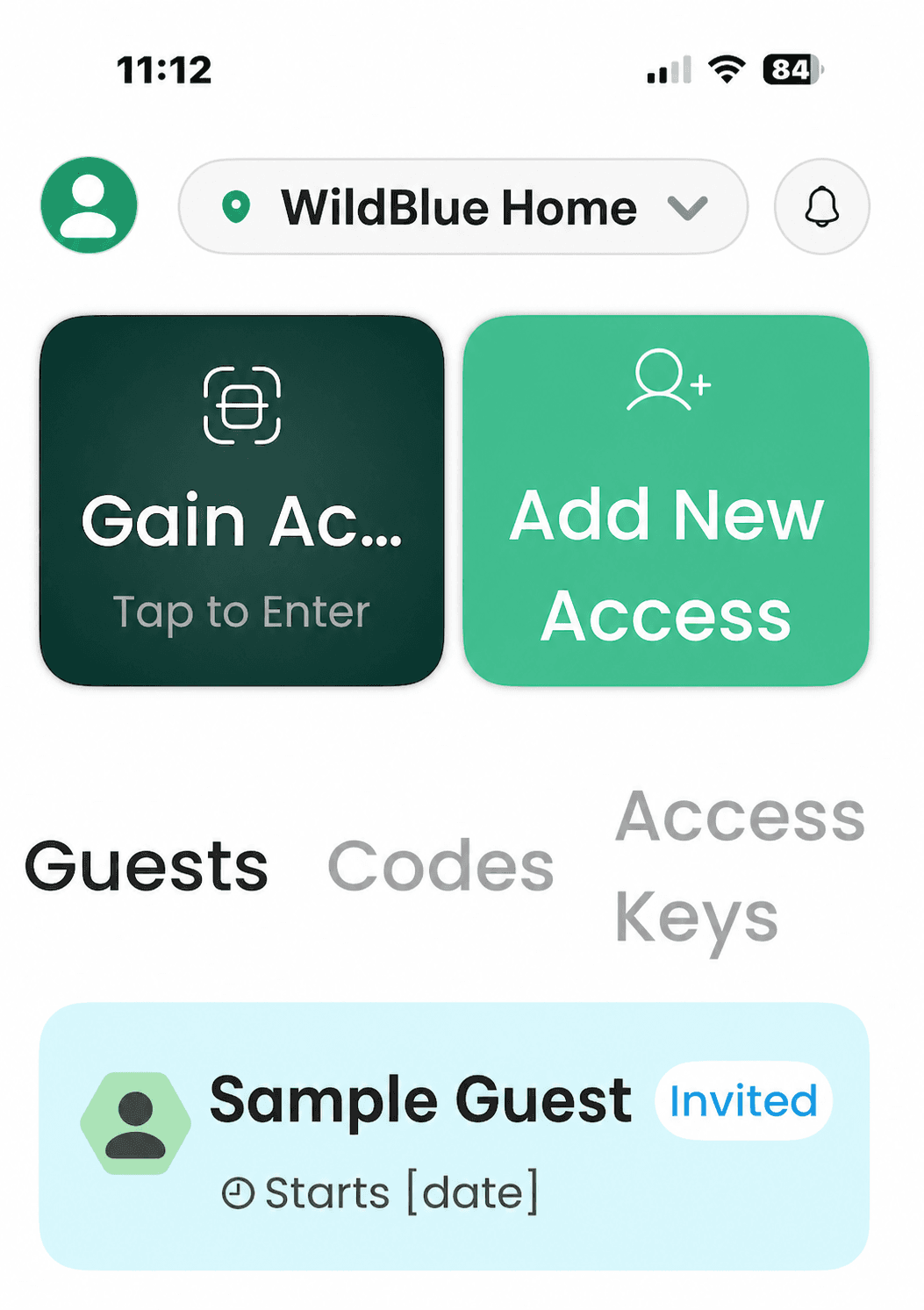
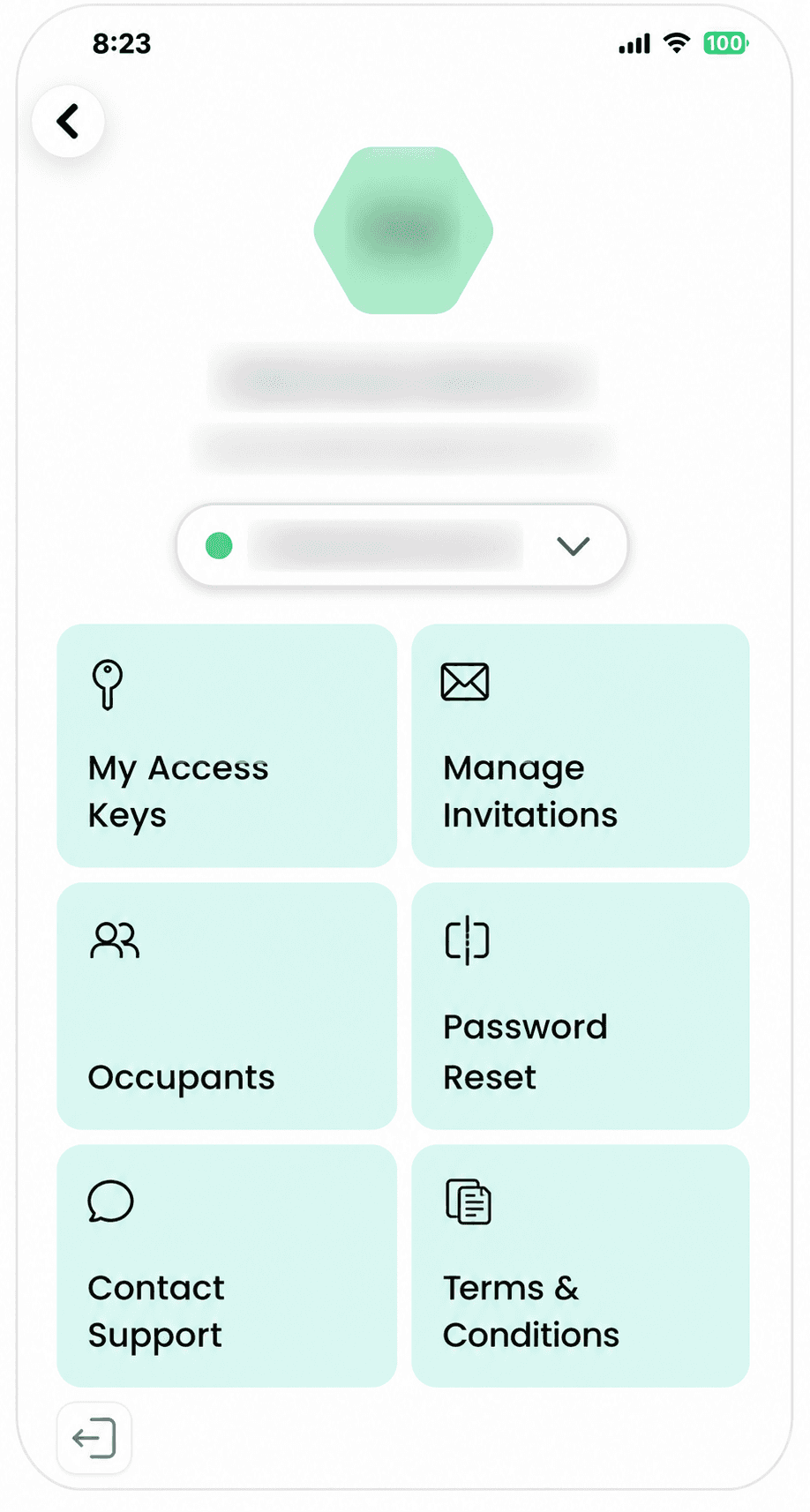
Privacy note: these reference images were redacted from resident-provided captures. Names, initials, email addresses, property addresses, guest details, and dates have been removed or replaced with generic examples.
Visual walkthrough
Guests, one-time codes, and gate scanning
These screens come directly from the current iPhone app. The options shown for your account may vary slightly as WildBlue configures the system.
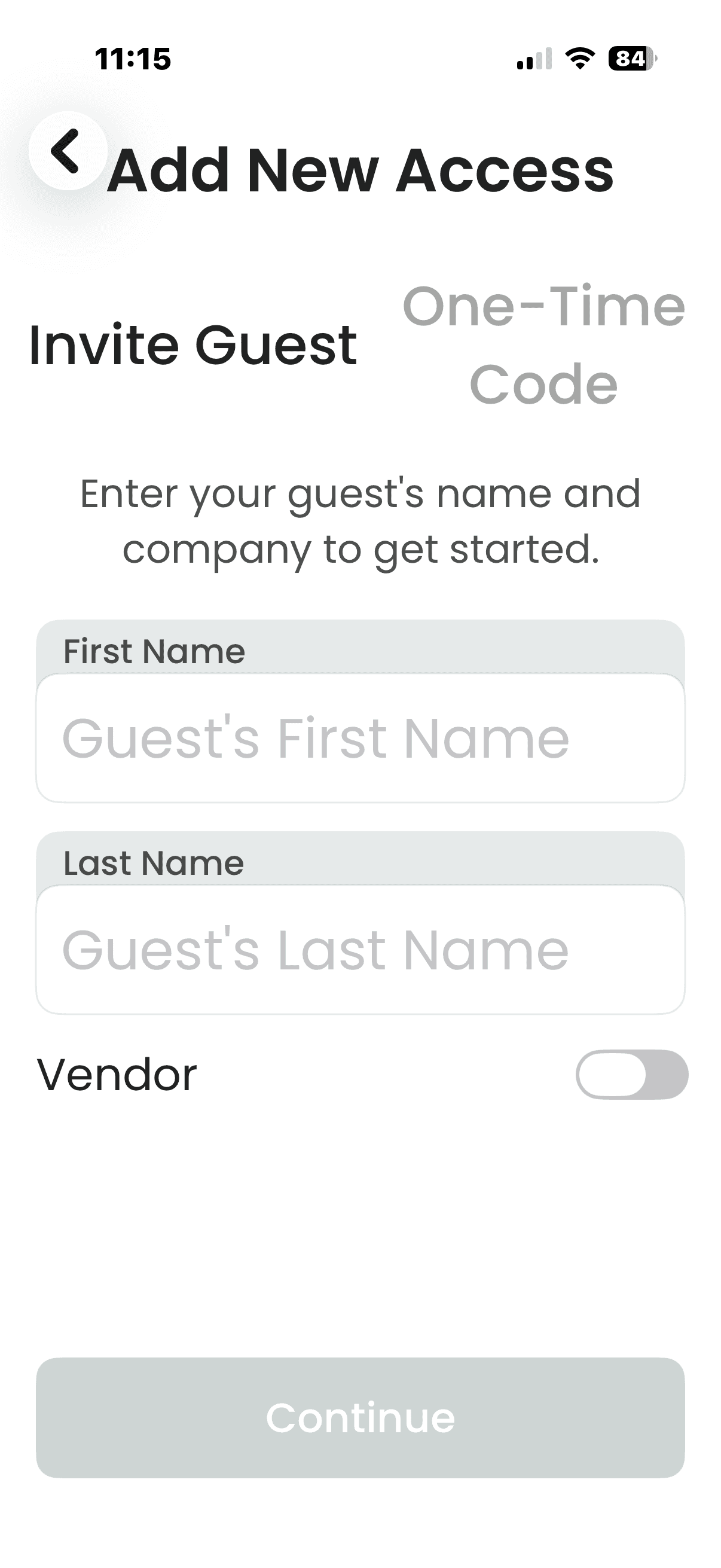
Enter the guest's name. Use the Vendor switch for a service provider, then tap Continue.
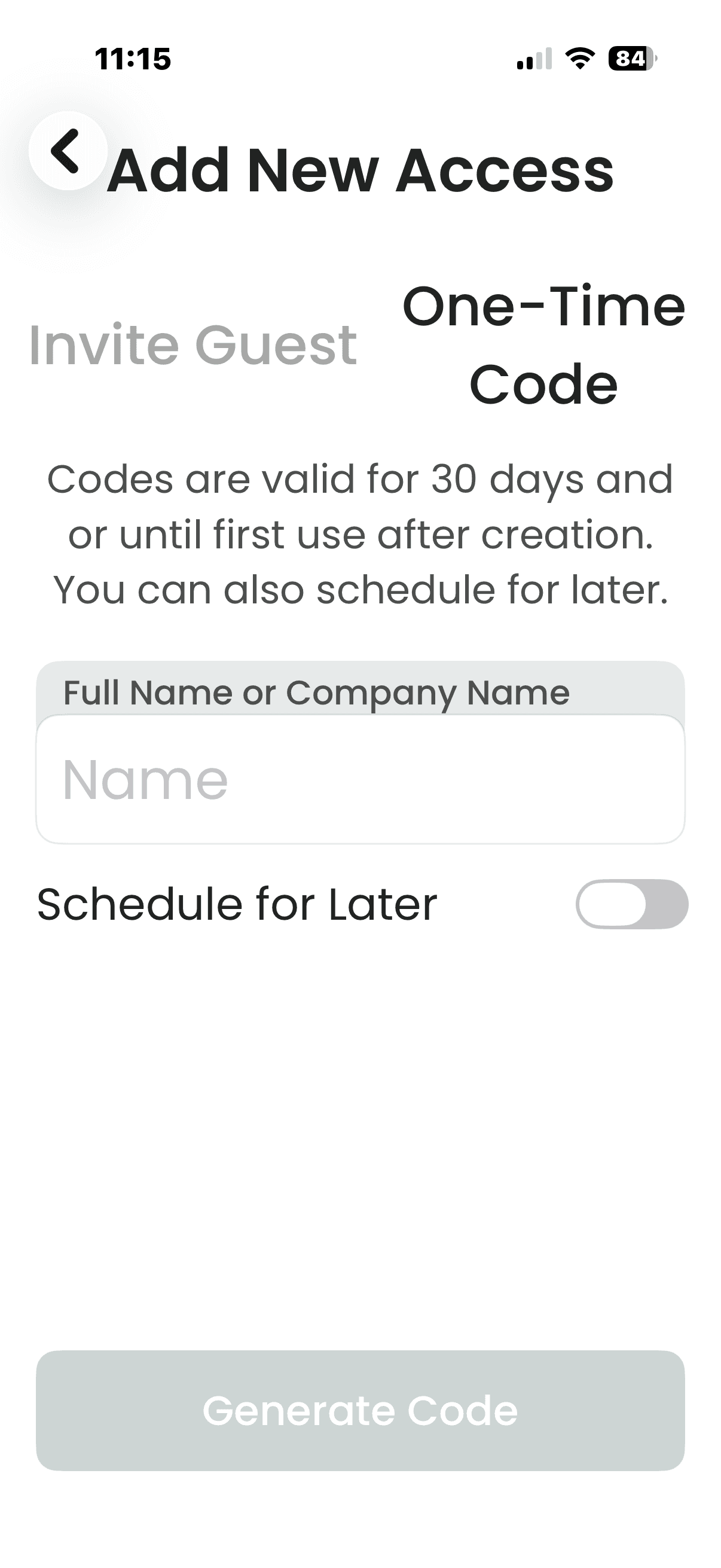
Enter a person or company. The code lasts up to 30 days or until first use, and it can be scheduled for later.
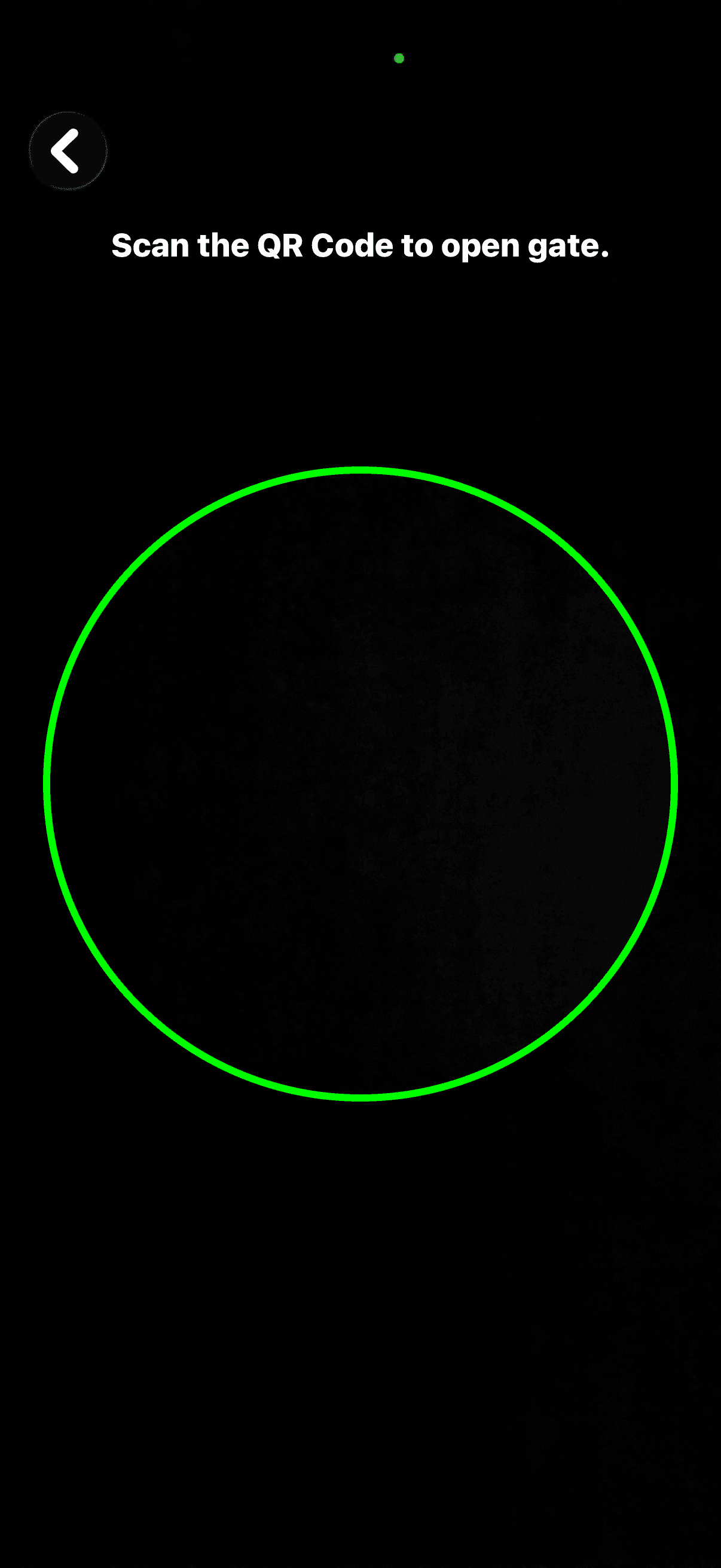
Point the in-app scanner at the gate's SAGE QR code. Confirm supported WildBlue gates and lanes during training.
Which SAGE option should I use?
Use this as a quick starting point. WildBlue may configure certain access types, gates, lanes, and delivery procedures differently; confirm those details during resident training.
Friend or family visiting once
Invite Guest
Add the person by name and follow the invitation prompts.
Friend or caregiver who visits regularly
Recurring guest access
Use a repeating schedule if that option is enabled for WildBlue.
Plumber, cleaner, landscaper, or contractor
Vendor
Choose Invite Guest and turn on the Vendor switch.
One-time service or company visit
One-Time Code
Create a code for the person or company; it expires after first use or 30 days.
Food or grocery delivery
Delivery workflow / One-Time Code
Use WildBlue’s confirmed delivery procedure once announced.
Resident entering in a registered vehicle
License-plate recognition
Make sure the vehicle and plate are registered and approved.
Resident at a SAGE QR-enabled gate
In-app QR scanner
Use SAGE to scan the QR code displayed at a supported gate.
| Situation | Likely SAGE option | What to do |
|---|---|---|
| Friend or family visiting once | Invite Guest | Add the person by name and follow the invitation prompts. |
| Friend or caregiver who visits regularly | Recurring guest access | Use a repeating schedule if that option is enabled for WildBlue. |
| Plumber, cleaner, landscaper, or contractor | Vendor | Choose Invite Guest and turn on the Vendor switch. |
| One-time service or company visit | One-Time Code | Create a code for the person or company; it expires after first use or 30 days. |
| Food or grocery delivery | Delivery workflow / One-Time Code | Use WildBlue’s confirmed delivery procedure once announced. |
| Resident entering in a registered vehicle | License-plate recognition | Make sure the vehicle and plate are registered and approved. |
| Resident at a SAGE QR-enabled gate | In-app QR scanner | Use SAGE to scan the QR code displayed at a supported gate. |
Bring these questions to the town hall
These WildBlue-specific details are not clear from the flyer or public app listings yet.
- ✓Is SAGE fully operational at the Alico gate?
- ✓How exactly do guests use the Alico scanner?
- ✓Will existing guest lists transfer?
- ✓Does every guest need SAGE, or can they use a code/link?
- ✓Which lane should guests, deliveries, and contractors use?
- ✓How long do one-time and recurring permissions last?
- ✓What happens when plate recognition fails?
- ✓How are rental cars and temporary plates handled?
- ✓Can two household members manage the same address?
- ✓Who handles WildBlue approval and after-hours problems?
When something goes wrong
SAGE troubleshooting checklist
“No invitation was sent”
Confirm ICON completed your paperwork and used the same phone number or email you entered. Contact Roxanne Cook or Karen Murphy if no invitation exists.
ID or selfie verification fails
Use even lighting and follow the on-screen camera instructions. If it continues failing, SAGE support says it can assist with manual verification.
Scanner, video, or calls do not work
Check iPhone or Android settings and allow SAGE to use the camera, microphone, and notifications. Reopen the app after changing permissions.
App freezes or shows the wrong information
Update SAGE, fully close and reopen it, and capture a screenshot of the error. Contact SAGE support with “WildBlue” and your account details.
Guest is missing or denied
Confirm the invitation is active, the name and dates are correct, and the appropriate guest/vendor/code option was used. Contact WildBlue management if the gate still cannot locate an active entry.
Gate arm, lane, scanner, or guard issue
Report physical equipment and on-site operational problems to WildBlue/ICON management rather than treating them as an app-support problem.
Resident FAQ
What we know so far
What is SAGE?+
SAGE is the new RAMCO access-control system being introduced at WildBlue. It can manage resident vehicles, guest invitations, service-provider access, deliveries, and communication with a virtual guard.
Which app should I download?+
Download “Sage Systems” by RAMCO Protective. “Sage Guard” is a different app intended for community managers and guards.
Is the green SAGE app the correct iPhone app?+
Yes. On iPhone, look for the green SAGE icon and the listing named “Sage Systems” by RAMCO Protective. Use the official iPhone button at the top of this page to avoid similarly named apps.
Why does the app say no invitation was sent to my phone number?+
SAGE cannot connect you to WildBlue until ICON has your completed paperwork and sends your resident invitation. Confirm that the phone number you enter matches the number ICON used. Start with Roxanne Cook at rcook@theiconteam.com. Karen Murphy can also be reached at kmurphy@theiconteam.com or (239) 444-9202.
How do I get a SAGE invitation?+
Email Roxanne Cook at rcook@theiconteam.com and complete the required ICON registration paperwork. Roxanne will send the resident invitation used to connect your WildBlue residence in SAGE.
What ID can I upload in the app?+
When SAGE asks for a government ID during registration, WildBlue residents can use their WildBlue Resident ID card for this step. If you do not have a WildBlue ID yet, contact Sara Cannaday, WildBlue Amenities Administrative Assistant, at scannaday@theiconteam.com or (239) 444-9206.
Can I use SAGE before WildBlue approves me?+
No. You need the resident invitation from ICON, and WildBlue must approve your residency and vehicle registration before the system is fully functional.
How does my car enter?+
WildBlue says the new system uses license-plate recognition. Your plate must be registered and approved. Details such as which lanes use plate recognition should be confirmed at training.
Is the Alico gate working with SAGE now?+
We do not yet have a confirmed official answer. Residents have specifically asked whether the Alico gate is fully configured. Confirm its current status at the town hall before relying on SAGE there.
Will a guest’s SAGE access work at the Alico gate scanner?+
This remains unconfirmed. The town hall should clarify whether invited guests use the Alico scanner, a guest lane, a code, or the virtual guard. Until then, give guests enough time to follow the posted gate instructions.
Can I invite a recurring guest?+
Yes. RAMCO’s official app description says residents can create recurring access for friends, as well as day passes and one-time access.
How do I invite a guest or vendor?+
From the dashboard, tap Add New Access and choose Invite Guest. Enter the guest’s first and last name. Turn on the Vendor option when the person is visiting as a vendor or service provider, then continue through the remaining prompts.
How long is a one-time code valid?+
The SAGE app says a one-time code is valid for up to 30 days or until its first use, whichever comes first. You can enter a person or company name and use Schedule for Later when the access should begin on a future date.
How does the QR gate scanner work?+
The SAGE scanner screen instructs residents to scan the QR code to open the gate. Use the in-app scanner only with the QR code displayed at a SAGE-enabled gate. WildBlue should confirm exactly which gates and lanes support this feature.
What should I use for a delivery?+
The official app description supports one-time access for deliveries. WildBlue will explain its exact DoorDash, Uber Eats, grocery, and other delivery procedure during training.
Will my old guest list transfer?+
This has not been confirmed for WildBlue. Plan to ask at the town hall and avoid assuming your existing guest list will migrate automatically.
Does my guest need the app?+
The exact WildBlue guest workflow has not yet been published. Ask whether guests receive a code, link, app invitation, or different instructions for each type of visit.
Can I attend the town hall remotely?+
Yes. Organizers have said a Microsoft Teams link will be provided. Use the official link distributed by WildBlue or ICON; avoid relying on a copied or shortened link from an unofficial post.
Will a recording be posted after the town hall?+
A recording is not currently expected. If you cannot attend in person, use the live Microsoft Teams option and watch for any written follow-up distributed afterward.
What if I change phones or forget my password?+
Try the sign-in recovery option in SAGE first. If your approved WildBlue property does not appear or activation fails, contact the community/ICON team; app support is available at support@sagesystems.io.
Will SAGE notify me when my guest arrives?+
RAMCO says SAGE can notify hosts when a visitor arrives, using email or app notifications. Whether both options are enabled at WildBlue—and what the bell icon controls—should be confirmed during training.
Can the gate call me through the app?+
Yes. RAMCO’s official app description says SAGE can receive video calls directly from the gate. Camera, microphone, and notification permissions may be required for the full experience.
What if SAGE will not accept my ID or verification photo?+
RAMCO says its support team can help complete verification manually. First confirm that ICON sent your invitation and that you used the same phone number or email. Then contact support@sagesystems.io with your property name and account details—but never send sensitive identification by ordinary email unless support provides an approved secure method.
Who handles an app problem versus a gate problem?+
Use SAGE support for sign-in, verification, crashes, permissions, or other app behavior. Report a physical gate arm, scanner, lane, guard, or property-configuration problem to WildBlue/ICON management so it can be routed to the correct RAMCO operations team.
What information does the app use?+
The store privacy disclosures say the app may handle contact information, identifiers, photos/video, location, contacts, audio, and diagnostics depending on platform and features. Review the store privacy details before granting permissions.
Official app & support
Use the official store pages above. RAMCO lists app support at support@sagesystems.io and (888) 398-9700.
Living guide
SAGE changes frequently and WildBlue’s exact procedures may differ from another community’s. This page will be updated after resident training. Last reviewed July 11, 2026.
How this guide is verified
WildBlue-specific procedures come from the resident flyer, ICON contacts, and screens tested by residents. General feature and support information is checked against RAMCO’s official access-control information ↗, the Apple App Store listing ↗, and the Google Play listing ↗. App-store reviews are used only to identify troubleshooting questions, not as proof of how WildBlue is configured.
Have a SAGE question we haven't answered?
Send it to WildBlue Life. Questions gathered from WildBlue residents may be added to this guide anonymously after the answer has been verified.
Submit a SAGE questionWe do not publish resident names, profile photos, addresses, or private-group screenshots without permission.
WildBlue Life is an independent resident resource and is not affiliated with RAMCO, SAGE, ICON, or the WildBlue POA. Community procedures should be confirmed with official WildBlue management.